⚙️ Optimisation
Optimisation:
- Lowering the number of polygons / effects displayed at one time in your map.
- Reduce strain on hardware / Increase player fps.
Pre-Optimisation:
Not disregarding theory discussed in ‘Level Design’, one method I’m confident is important for optimisation is keeping the instances of static meshes down (keep copies of SM’s mostly the same scale). Playing with scale is brilliant for reusing assets creatively, but unfortunately, it means more computer calculations, less performance, and probably a bigger file size (I’m not a graphical or software engineer ok? xd)
How to Get This Done
I’m proficient, not an expert, so I’ll leave the specifics up to those that know it all. One way to reduce polygons in a given area is by replacing/converting additive brushes to semisolids, using the special brush builder or via Rick → Type. 👉 Hourences Tutorial on Semisolids
Another way to optimise is to reduce the amount of space a player renders at any given time, which is done with smart level design (consult ‘Level Design’), as well as portals and antiportals.
Portals
Look at any stock KF map in SDK and you’ll see textured sheets cutting through doorways, archways, windows, or room seams, but they won’t appear in-game. Those are portals.
Portals define zones - in this context, areas where a player should always render assets while inside. Anything out of player Line Of Sight (LOS) in another zone can be culled to improve performance.
To create a portal:
- Use the Sheet Builder Tool (beside CubeBuilder) to create a sheet.
- Position it where needed (ideally a perfect fit to windows/doorways).
- Use the Special Brush Tool and select the Portal preset.
Alternatively, go into a planar brush's surface properties and tick the Portal flag, both methods work.
//ProTip: Obviously the dimensions for a perfect fit is hard to work out when UE wont natively provide any selected brush dimensions. Ctrl + MiddleMouse will draw a ruler for you if needed, but I always physically jotted down common dimensions for doors, windows and so on in a notebook, well in advance. I started to look like John Nash when I was in the flow.
AntiPortals
These are another Special Brush preset. Think of them as the opposite of portals. While portals define what’s visible, antiportals define what isn’t. They only cull objects that are completely obscured from view.
So, place antiportals inside terrain, walls, or large SMs. If they block visibility to meshes behind them, those meshes won’t render.
⚠️ Don’t place AntiPortals inside Add BSP / solid space.
Emitters
Particle systems are by far the biggest eaters of performance, use them sparingly. And don't go crazy with the settings.
You can try force attaching their visibility to ZoneX → Object → Name, though it only half-works.
Map KF-Wyre makes it work I think (drove me insane).
Collision
(Thanks to Fel’s guide.) Static meshes with collision — especially nonZeroExtent — eat a surprising amount of performance. If they don’t need it, disable it.
Managing every SM is painful, so be smart with selections:
- “Chandeliers don’t need collision.” → Rick → Select all SM type → Collision off.
- “Blocked-off areas don’t need SMs with collision.” → Select all meshes in zone → Collision off.
CullDistance
Each SM has a Display → CullDistance property.
This defines how far away the mesh should be rendered.
Lower values = less rendering = better performance.
Potato PCs might override this with settings, but that’s not your problem — optimise for the majority.
💡 Remember? Use Shift + Middle Mouse Button to draw a ruler in 2D viewports to measure distance. If it's an awkward use case, just play with Active (Builder) brush dimensions to find out.
CHECK GAME LOG
Sometimes lag is caused by hidden features or scripts, e.g.:
- Inactive KFO conditions with HUD
- Destroy Actor loops
- ST / mover loops
- Karma decorations
Additional / Extreme Measures
- Find all BSP surfaces that players will never see, spawns, roofs, doorways concealed by SM doorways. Apply Engine.Black Texture.
- Display -> LOD Bias (Default Distance LOD scaling override) I use for mass produced / boring static meshes.
Commands:
STAT RENDER— shows an active polygon count currently rendered on screen.
Important Bonus Jank
Having FPS issues?
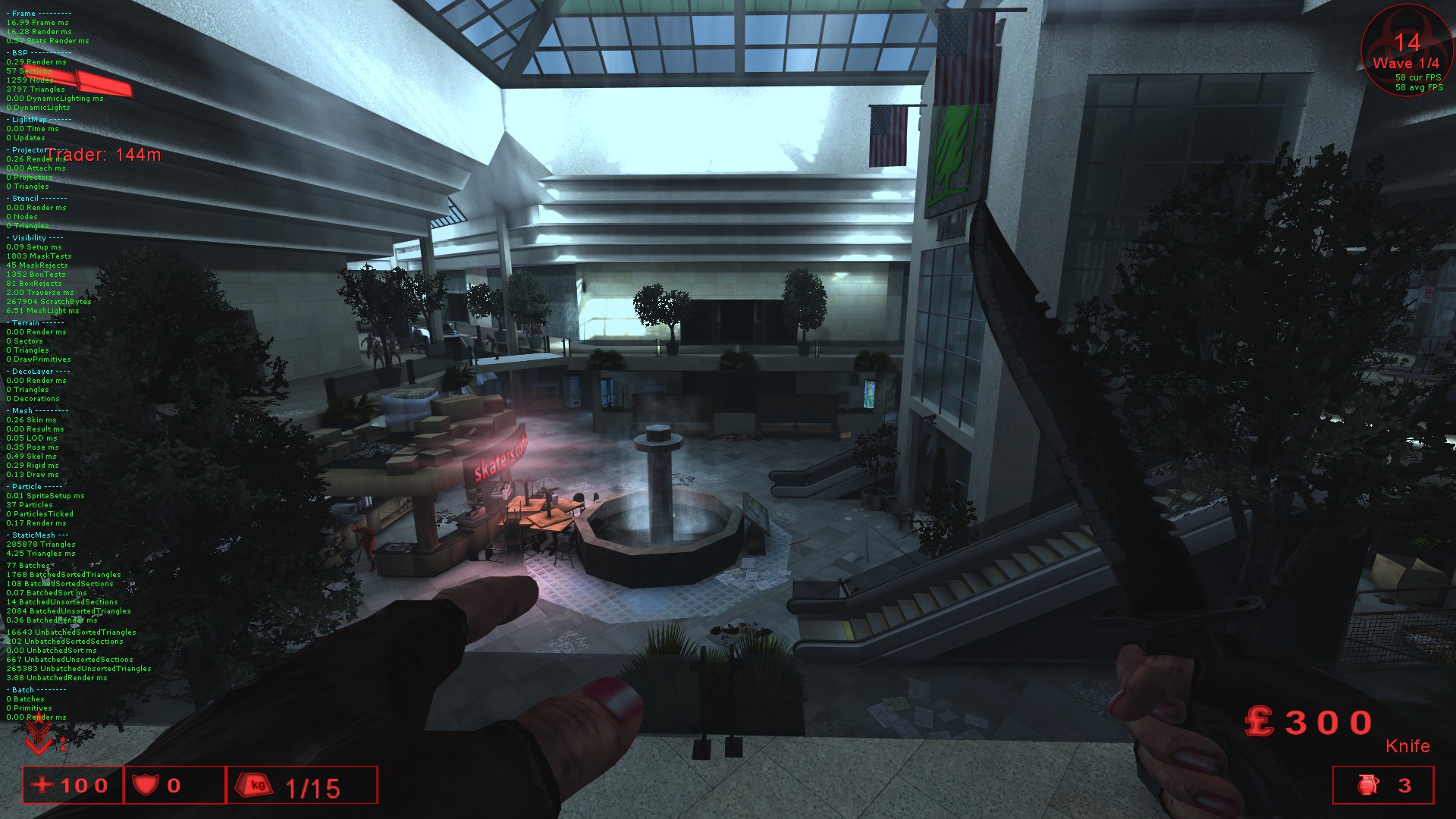
No matter what I did, I could NOT get it to run better. But you know what fixed it? Cutting all the meshes, saving the map, reopening the editor, and pasting them back in. This somehow doubled my framerate after rebuilding the map.
Before:
After:
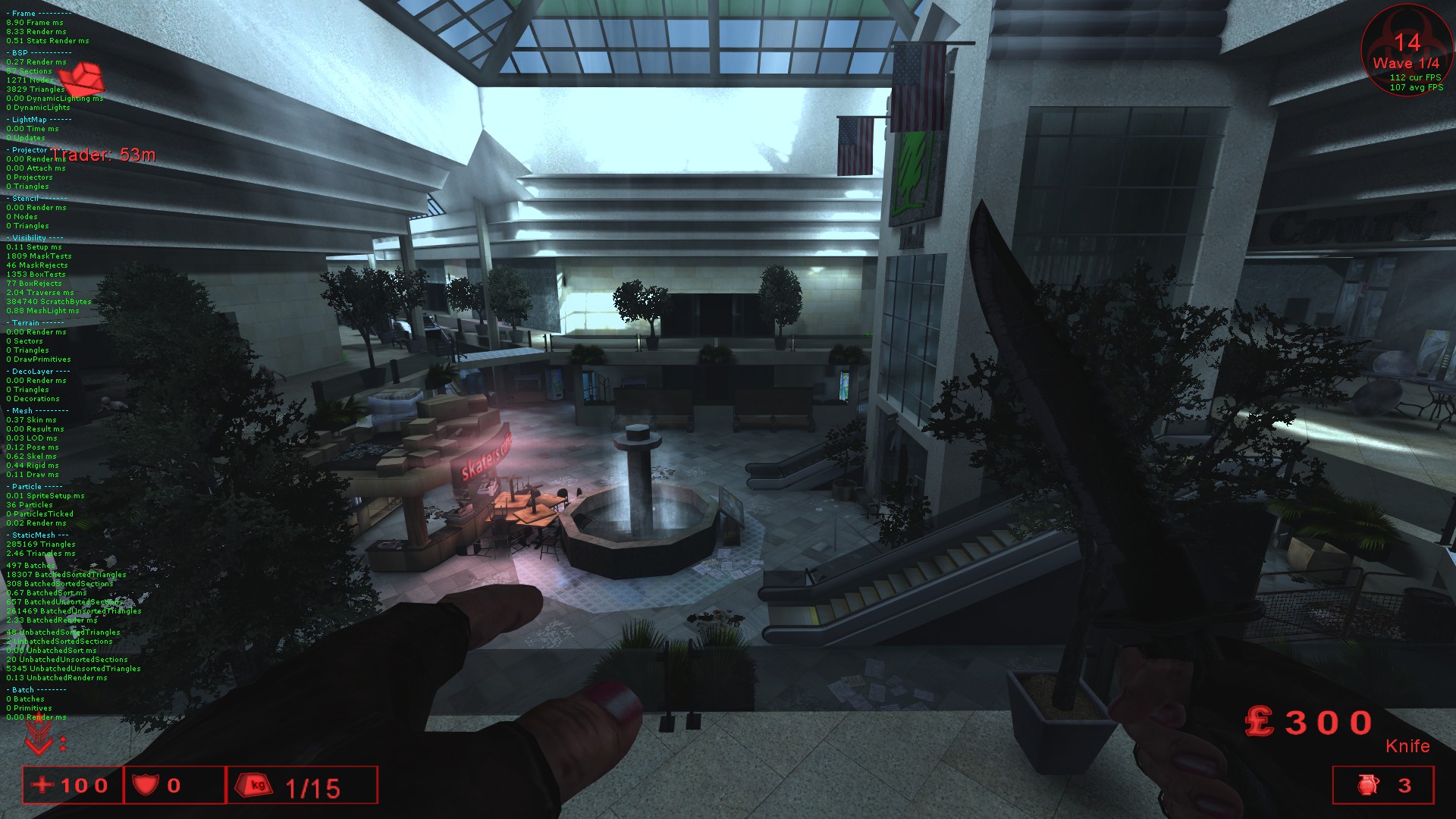
Explainer: According to OldUnreal, this engine’s mesh batching can “break,” forcing it to reload meshes individually per instance. Cut-paste refreshes batching and improves performance.
Extra optimisation reading: 🔗 Tripwire Forum Thread – How to Optimise Your Map
Minor Afterthought: In UE5 terrain, components (heightmap grid parts) duplicate adjacent vertices, adding data and lowering performance. This likely holds true for UE2, larger terrain sectors are more optimised but may worsen collision — a trade-off worth testing. Coincidentally, similar settings exist in kfFluidActors.
^^I tried it, and unless you’re committed and technical... don’t bother xd.