⚙️ Movers
Now that you’ve started getting to the bare bones of the map, maybe you’ve decided you want a door, elevator or a Moving - static mesh. Yep, those are movers. And yep, it’s pretty much limited to linear motions, so if you want anything more advanced, build an animation.
To get a mover working sounds simple in principle — you give it numbered key positions (or key numbers), then tell it to move based on a trigger of any kind. It could also loop endlessly, but some of us can get stuck. “Whaa? How? Come on Help us Batman you're our unpaid intern!”
Well, your first step is to assign the mesh as a mover. Technically, you may be able to do it in advanced properties, but I only ever tested that once.. and never again lel.
Building The Mover
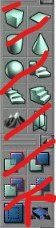
First, highlight the SM you want in the mesh browser, then click the rectangle with 4 arrows as shown above ^^ (Oh and if you Rick — right click — you get to choose between advanced mover types).
Great, now SDK has inserted a perfectly normal looking mesh somewhere in the middle of where you last left your red, active brush.
Grab the mover, place it exactly where you want it to start, then Rick → Mover → Key 0. What you’ve just done is let the map know the starting position of the mover, so go ahead, Rick, and do the same thing again, but select Key 1.
KF SDK is now going to record where you move the mesh, in a linear manner. So re-position or rotate the mover, and keep that motion simple, because if you want advanced movements, you repeat the process with Key 2 and so on.
Now, the mover knows where it should go but it still needs to know When… :o
When to work???
Naturally, this is when you Rick and go into its properties:
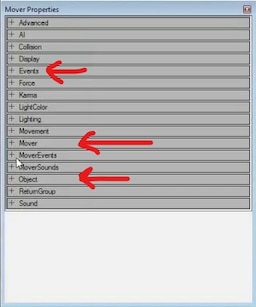
Among the tabs this opens up there are 3 vital ones:
- Events — Where you can assign a ‘Tag’ to the mover, linking it to any event that may be triggered by something else.
- Mover — Which entails how long it will take to move through each key, and any delays.
- Object — Where you tell the mover what makes it move and how it moves.
Vital Points:
**KFUseTrigger** is exclusively for KFDoorMovers.
**Encroach** - is a setting as it sounds, players and specimen can get in the way of movers, so this tells movers what to do if this occurs.
Just bear in mind 'ignore when encroach' can cause phasing through objects or players D:
**StayOpen time** - there’s a preconfigured mover setting in 'properties -> object' that takes the mover to its final keybind then returns to key 0 after a stated amount of time.
Stay open time is just another setting hidden under 'properties -> mover', that customises how long a mover stays in the final key position.
**Trigger Toggle** - will go through all the key positions in one motion, until the final one, then it only goes backwards through the same key positions to key 0 when triggered a 2nd time.
It’s rather tedious to explain more settings, but if you’re interested you can find them all, in detail, on the UE2 site map: https://docs.unrealengine.com/udk/Two/MoversTutorial.html or Lode’s guide: https://lodev.org/unrealed/movers/movers.html